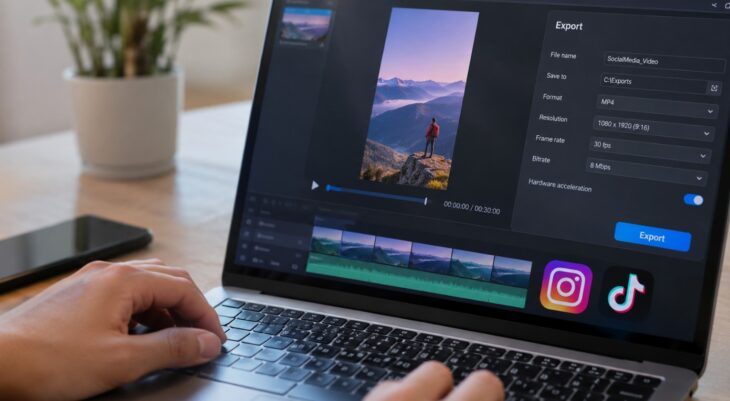
You finish editing a video, export it, and prepare to upload it to Instagram, TikTok, or YouTube. Everything looked fine in the editing software, but the exported file suddenly has no sound, freezes halfway through, or refuses to upload.
Sometimes the problem appears only after publishing. The video might look blurry, display strange colors, or have audio that no longer matches the picture. For content creators and businesses managing several social media accounts, problems like these can interrupt an entire publishing schedule.
Fortunately, many export failures have identifiable causes. The first step is finding out if the problem comes from your editing settings, the exported file itself, or the social media platform processing the upload.
Why Do Videos Stop Working After Exporting?

Exporting converts your edited project into a video file that other applications and devices can play. During this process, the editing software combines video tracks, audio, effects, and other elements using your selected settings.
A mistake during encoding can create a file that behaves differently than expected. An interrupted export may leave the file incomplete, and even a successful export can use settings that certain platforms cannot process correctly.
The symptoms usually provide useful clues.
| Problem | Possible Cause | What to Try |
|---|---|---|
| Video will not open | Incomplete export, file corruption, or unsupported codec | Test another player, inspect the file, or export again |
| Audio is missing | Audio track disabled, unsupported encoding, or platform restrictions | Check audio settings and export using AAC |
| Video looks blurry | Low export resolution, excessive compression, or platform processing | Increase export quality and check the uploaded version later |
| Video freezes or stutters | Damaged frames, encoding errors, or playback limitations | Try another player and create a new export |
| Audio is out of sync | Timeline problems, inconsistent frame timing, or encoding issues | Check the source clips and frame rate |
| Upload keeps failing | Unsupported settings, file size, or connection problems | Check platform requirements and upload stability |
1. Your Video Format or Codec Is Incompatible
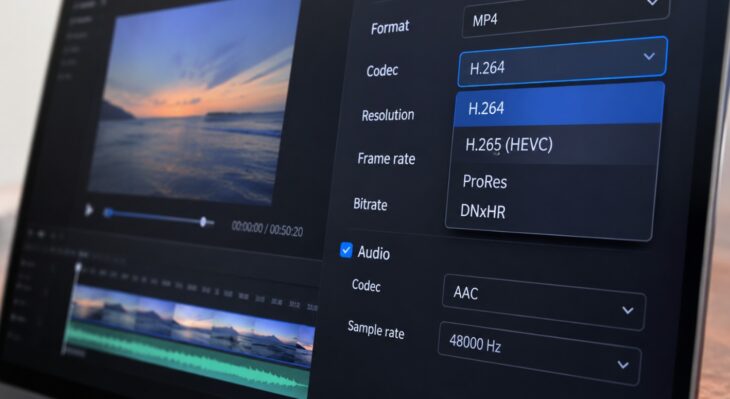
One of the most common mistakes is assuming that every MP4 file works the same way.
MP4 is a container format. It holds video, audio, and other information, but the actual video can be encoded using different technologies.
For example, two MP4 files might look identical in your file manager. However, one may use H.264 encoding and the other HEVC, also known as H.265.
Some devices and platforms handle these formats differently. An MP4 extension alone does not guarantee compatibility.
How to Fix It
For standard social media publishing, H.264 video with AAC audio is a widely supported combination.
Adobe recommends H.264 when exporting videos for social media. Its export tools also let you adjust frame size and bitrate for different platforms.
If your file refuses to upload, open the original project and create another export using these settings. Test the new file locally before attempting another upload.
2. The Exported Video File Is Corrupted
A video can also become damaged during export, copying, downloading, or storage. The editing software may finish rendering most of the file but fail before writing all the information needed for playback.
For example, an MP4 contains metadata that helps a player locate and interpret its audio and video tracks. If important structural information is missing or damaged, the video may refuse to open even though the file occupies considerable storage space.
Other signs of corruption include playback stopping at the same point, missing sections, and unexpected errors in multiple media players.
How to Fix a Damaged MP4 File
First, check if the original project and source recordings still exist. Exporting the video again is usually preferable to repairing a damaged copy because it can preserve the intended picture and audio quality.
If re-exporting is impossible, make a backup of the damaged file before attempting recovery.
When the MP4 itself cannot open, you can repair corrupt MP4 online or with a dedicated repair software.
Bear in mind that repairing file corruption is different from correcting export settings. A repair tool cannot automatically restore image detail lost through compression or change an incorrectly selected aspect ratio.
If the original recording was permanently truncated and the missing data no longer exists, complete recovery may not be possible.
3. The Video Looks Blurry After Uploading
A video that looks sharp on your computer may appear noticeably worse after publishing.
Social media platforms process uploaded videos to make them suitable for different devices and internet connections. Compression can reduce visible detail, especially in scenes containing fast movement, fine textures, or small text.
However, the original export may also be responsible.
For example, exporting a vertical video at 540 × 960 pixels and displaying it across a full smartphone screen can make fine details appear softer than a properly prepared 1080 × 1920 version.
How to Improve Export Quality
- Use the resolution appropriate for the destination platform.
- Avoid repeatedly exporting and recompressing the same video.
- Choose a bitrate appropriate for the resolution and frame rate.
- Keep a high-quality master copy of your finished project.
- Wait for the platform to finish processing before judging the final quality.
YouTube explains that newly uploaded videos may initially appear in lower quality because higher-resolution versions take longer to process. Its recommended upload encoding settings also include specific bitrate guidance for different resolutions.
Before re-exporting a blurry video, compare the local version with the published version. If only the published version looks poor, the issue may be related to platform processing rather than your editing software.
4. Your Audio Disappears or Becomes Out of Sync

Audio problems are especially frustrating because they can go unnoticed until the video has already been published.
Sometimes the exported file has no audio because the audio track was muted in the editing timeline or excluded during export.
In other cases, the audio plays locally but disappears after uploading. The cause may be an encoding problem, an issue with the platform, or restrictions involving copyrighted music.
Audio synchronization problems have several possible causes, including mismatched track durations, inconsistent frame timing, and errors introduced during editing.
How to Fix Audio Problems
Start by opening the exported file in a media player and listening to several sections, including the beginning and end.
If the sound is missing locally, return to the editing project. Check that the correct audio tracks are enabled and that the export includes audio.
For common social media uploads, AAC is a suitable audio codec. A sample rate of 48 kHz is also widely used for video production.
If the audio is synchronized in the editor but delayed in the export, examine the frame rate settings and look for recordings with irregular frame timing.
If the problem appears only after publishing, check for platform notifications about music restrictions before changing your export settings.
5. Your Video Has the Wrong Aspect Ratio
A horizontal video uploaded as a vertical Reel or Short may display large borders, crop important details, or leave your subject positioned awkwardly.
The problem usually begins in the editing timeline. If you create a project using horizontal dimensions and later export it for a vertical platform, the editing software may preserve the original composition.
Different social media placements also display content differently.
| Video Type | Common Aspect Ratio | Typical Resolution |
|---|---|---|
| Instagram Reels | 9:16 | 1080 × 1920 |
| TikTok Vertical Videos | 9:16 | 1080 × 1920 |
| YouTube Shorts | 9:16 | 1080 × 1920 |
| Standard Horizontal YouTube Videos | 16:9 | 1920 × 1080 |
| Square Social Media Posts | 1:1 | 1080 × 1080 |
The dimensions above are common production choices, not universal upload requirements for every platform or placement.
Before editing, decide where the video will appear. Set up the timeline accordingly and position important text and faces away from areas where platform interface elements may cover them.
If you create videos for multiple channels, prepare separate versions when necessary. Cropping a finished horizontal video into a vertical frame can remove important parts of the composition.
6. Frame Rate Problems Cause Stuttering
Frame rate determines how many individual images appear during each second of video.
Common recording rates include 24, 25, 30, and 60 frames per second. Problems can develop when source clips use different rates or when the export settings do not handle their timing correctly.
Smartphone footage can also use variable frame rates, particularly in changing lighting conditions. Some editing workflows handle these files without problems, but others may produce uneven movement or audio synchronization errors.
How to Fix Frame Rate Issues
Check the frame rate of the original recording before changing the export settings.
If the project contains footage recorded at 30 fps, exporting at 60 fps does not automatically create smoother movement. The editor may simply duplicate or interpolate frames.
When variable frame rate recordings cause persistent problems, converting the source clips to a constant frame rate before editing may help.
Test a short export containing the affected footage before rendering the entire project again.
7. The Video Has Strange Colors After Exporting
Have you ever exported a video and noticed that the colors suddenly looked faded, too bright, or completely different on your phone?
Color space and HDR settings may explain the change.
Modern smartphones can record high dynamic range footage. However, the editing timeline, export settings, and viewing device must interpret that footage correctly.
If an HDR recording is exported using unsuitable settings, highlights and colors may appear different than expected.
For standard dynamic range videos, Rec. 709 is a common color space. If your content mixes SDR and HDR recordings, review the color management settings before exporting.
Also compare playback on another device. Different screen settings and display capabilities can affect the appearance of the same video.
8. The Upload Fails Even Though the Video Plays Normally
If a video plays correctly on your computer but fails during uploading, the file may not be damaged at all.
Large file sizes, unstable internet connections, temporary platform issues, and unsupported upload parameters can interrupt the process.
Try uploading a short sample using the same encoding settings. If the smaller file succeeds, investigate the original file size, connection stability, and any upload restrictions.
For a video that repeatedly fails, you can also try exporting a new MP4 using H.264 and AAC. Keep the resolution and frame rate appropriate for the platform.
Avoid deleting the original project until the uploaded video has been processed and checked.
How to Check a Video Before Publishing It
A short quality check can prevent many embarrassing publishing mistakes, especially when you manage videos for clients or commercial social media accounts.
Before uploading your next video, complete the following checks.
- Play the entire exported file. Look for frozen frames, missing sections, and unexpected cuts.
- Listen to the audio. Check synchronization, volume, and the final few seconds.
- Verify the resolution and orientation. Confirm that the export matches the intended social media placement.
- Inspect subtitles and graphics. Make sure text remains readable on a smartphone screen.
- Check the file size. Confirm that it meets the requirements of the destination platform.
- Keep the original project. Save the source files and editing project until publishing is complete.
If you publish content for several platforms, keeping a separate export preset for each placement can prevent accidental changes to dimensions and encoding settings.